Moving, adding or removing pages
The page bar shows all your pages in a row, chapter by chapter. Right-click two pages to copy them, add pages next to them or remove them.
- Move: use ⌘⇧↑ and ⌘⇧↓, or 'Hoofdstukken verschuiven…' in Verhaal. The cover always stays at the front.
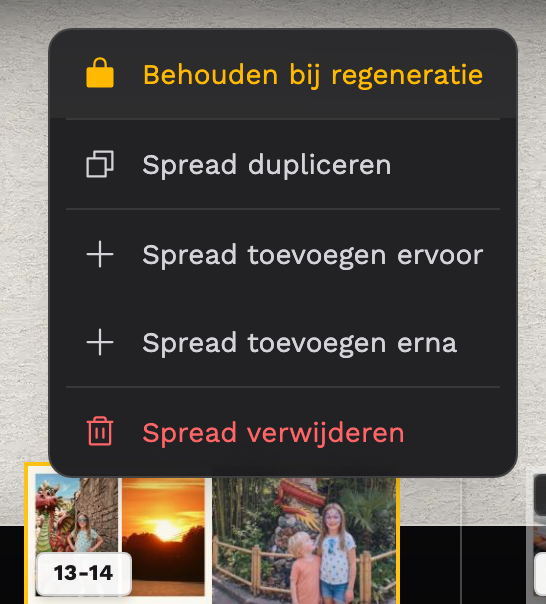
- Right-click two pages in the page bar (on a phone: press and hold) for 'Pagina's kopiëren', 'Pagina's toevoegen ervoor', 'Pagina's toevoegen erna' and 'Pagina's verwijderen'.
- Two empty pages at the end: the '+ Pagina's' tile.
- Select more pages at once: ⌘-click (Ctrl-click) or Shift-click.
- Lock: 'Behouden bij regeneratie' in the same menu. A padlock appears, and those pages stay as they are when we rebuild the book.
Removed pages
The photos that were on them go beside the book, onto the desk. A rebuild doesn't bring them back, unless they're also somewhere else in your book. Undo the removal and they come back with it.
Still stuck? Mail us at help@joypress.nl. We usually reply within a day.