Cropping, moving or cutting out a photo
We already crop with the people in mind: with us a face never ends up half out of frame. Want it different? Click the photo and press C, or grab the ✂ on the photo.
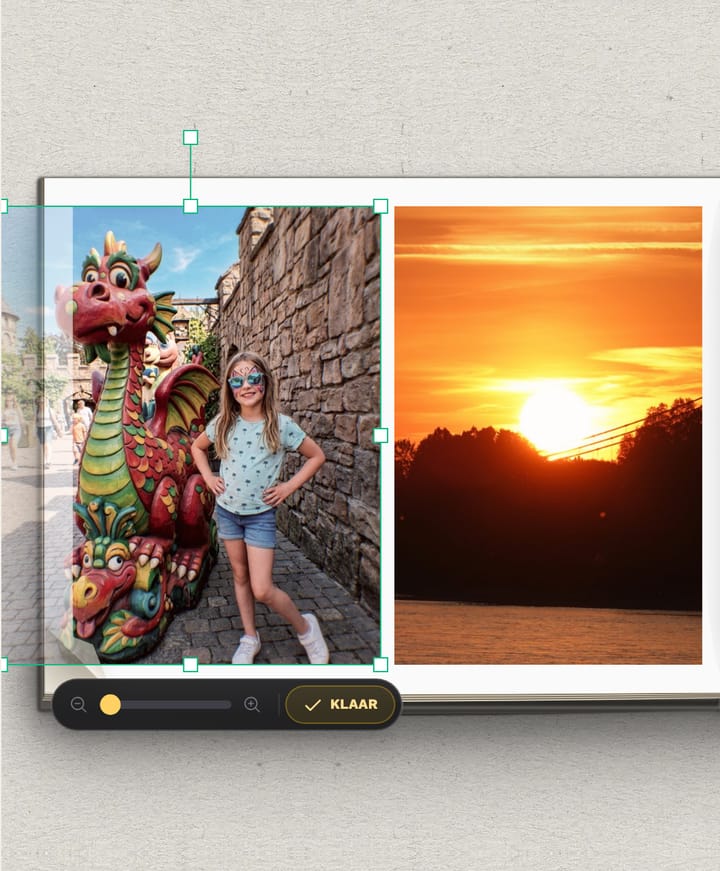
- Crop: click the photo and press C, or drag the ✂ on the photo. Drag the photo inside its frame, pull a corner to enlarge and turn it with the round knob. Done? Click Klaar; Esc puts it back.
- Move: grab the photo and drag it. Bigger or smaller: pull a corner.
- Swap two photos: drag one onto the other.
- Cut out: click the photo, open 'Effecten' and choose 'Uitgeknipt' under 'Kartel en scheur'. We cut the people or the subject free, so they can stand out over the page.
- Mirror, bring forward or send back: the buttons above the photo, or ] and [.
Still stuck? Mail us at help@joypress.nl. We usually reply within a day.